

Using the alameen ERP Cloud Customer Portal: Your Complete Guide

Once your alameen ERP Cloud subscription is ready, the Customer Portal is your self-service home. It is where you check your subscription, find the login details for each of your users, ask for more users and renew, without sending a single email.
This guide covers everything you can do in the portal. If you haven't subscribed yet, start with our registration guide, How to Subscribe to alameen ERP Cloud.
Signing in with a one-time code
The portal has no password to remember. Instead, we email you a fresh six-digit code each time you sign in.
Open the alameen ERP Cloud website and click Login, or go straight to the Customer Login page.
Enter the email address you registered with and click Send OTP Code.
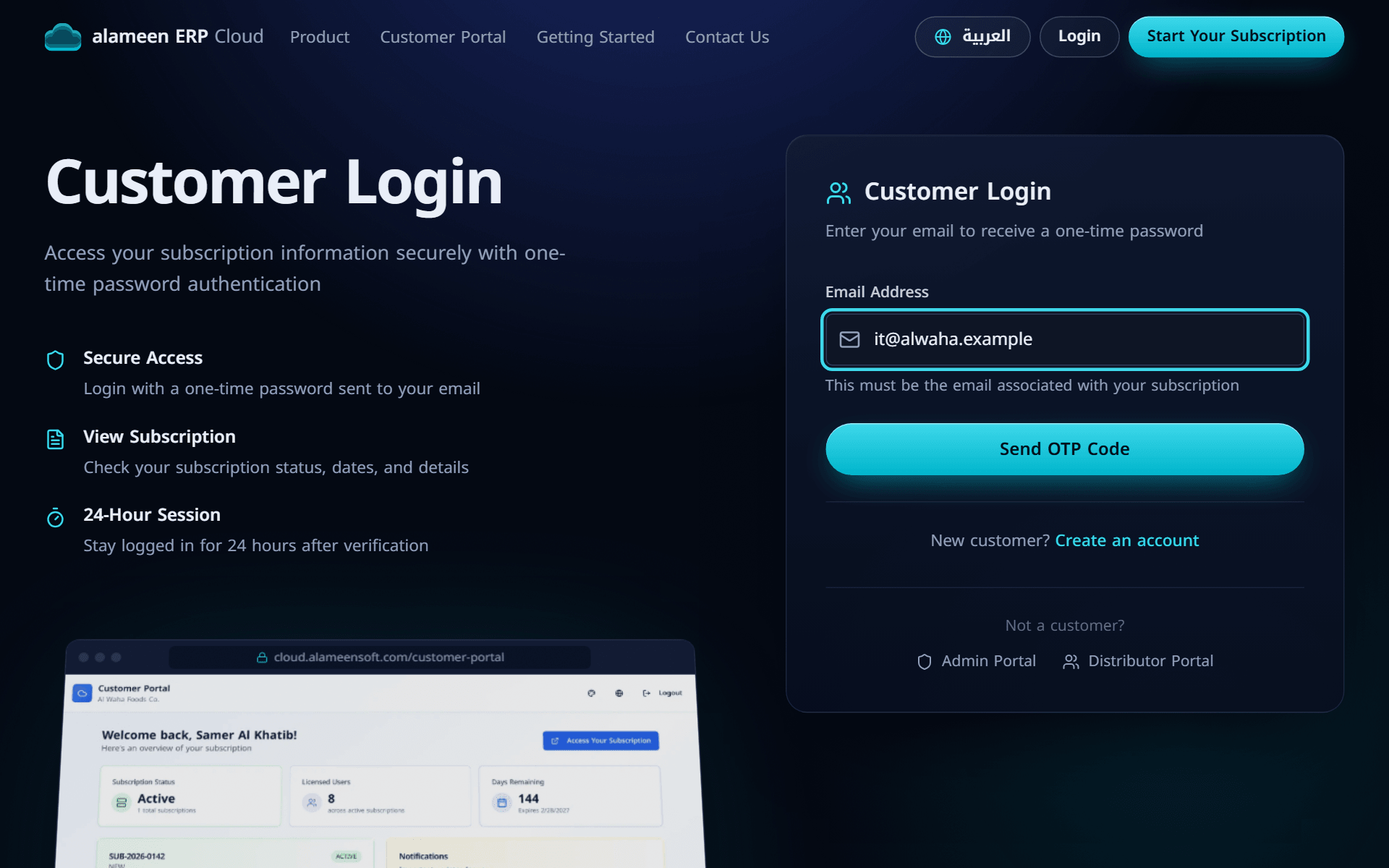
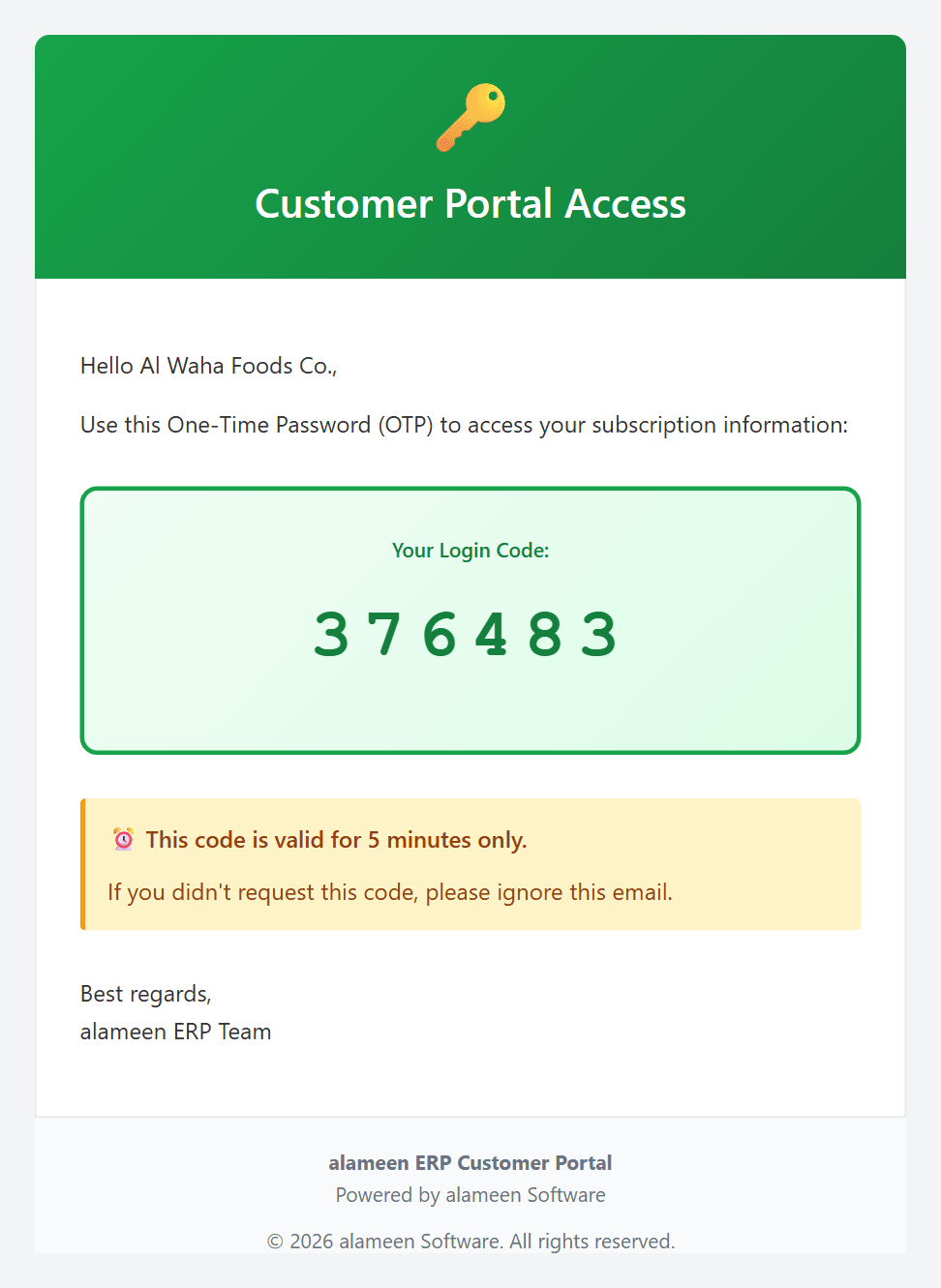
Check your inbox for an email titled Your Login Code. The code is valid for 5 minutes.
Type the six digits (or paste the whole code into the first box) and click Verify & Login.
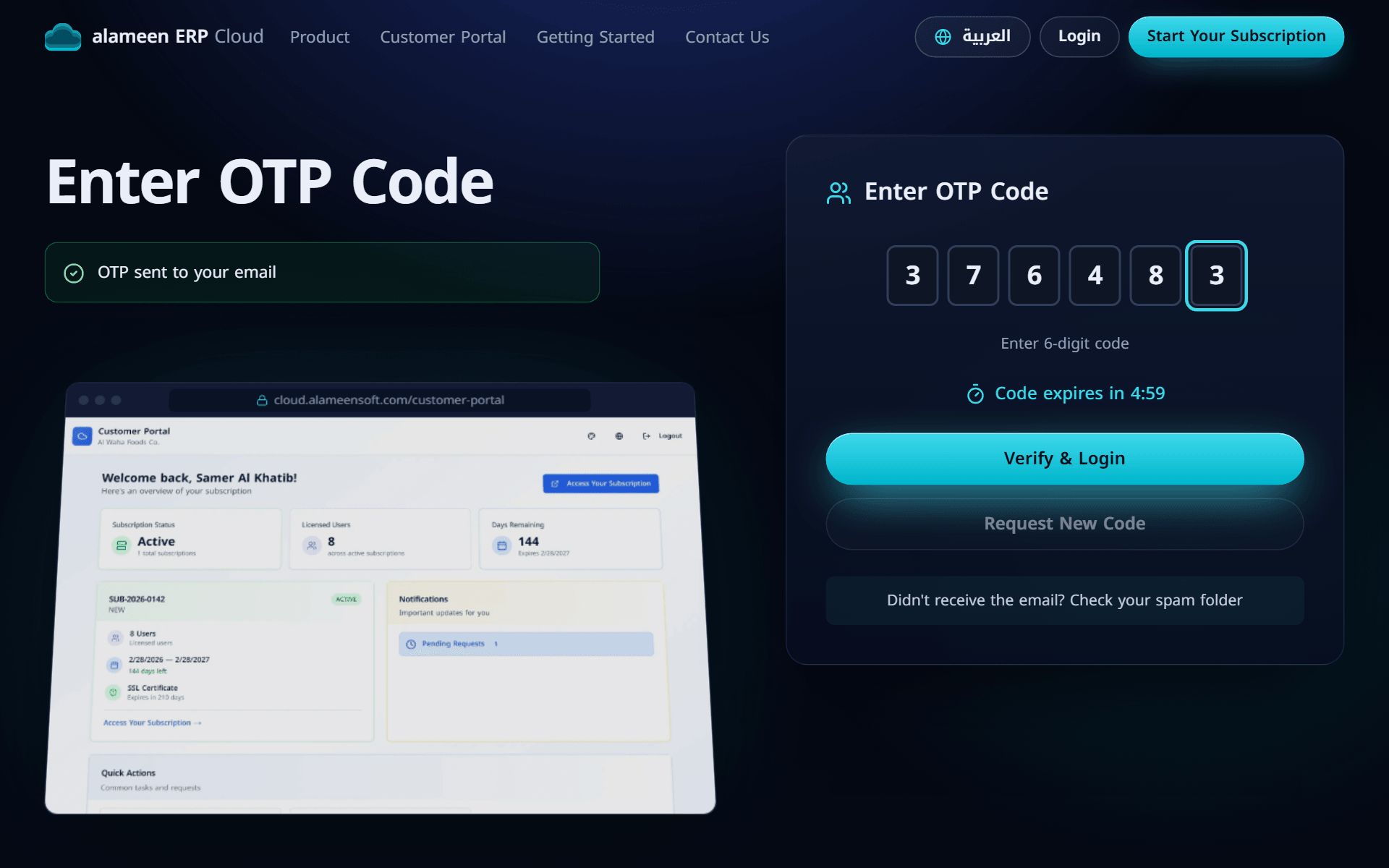
You stay signed in for 24 hours. Signing in on another browser or device signs you out of the previous one.
The portal opens for your email address once your subscription has been set up. For your security, the login page never says whether an email address is registered. If no code arrives, check your spam folder and make sure you used the email address from your registration.
Your subscription at a glance
After signing in, you land on your subscription page.
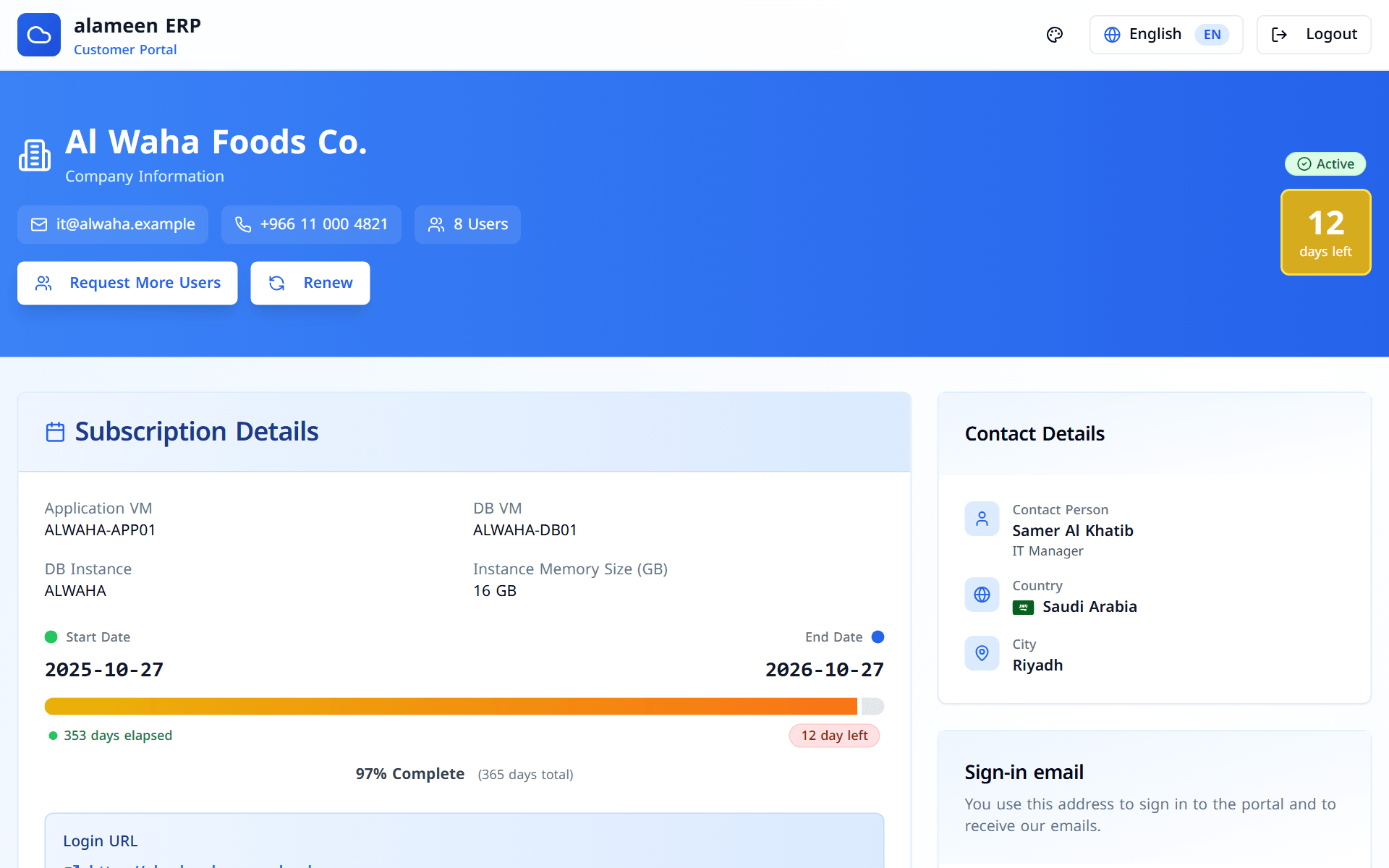
The blue header shows:
Your company name, email, phone number and number of licensed users.
Your subscription status (Active or Expired).
A box with the days left until your subscription ends. It turns yellow when 15 days or fewer remain, and red at 5 days or fewer.
The Request More Users button, and the Renew button once your subscription is within 15 days of its end date.
Subscription details and your login address
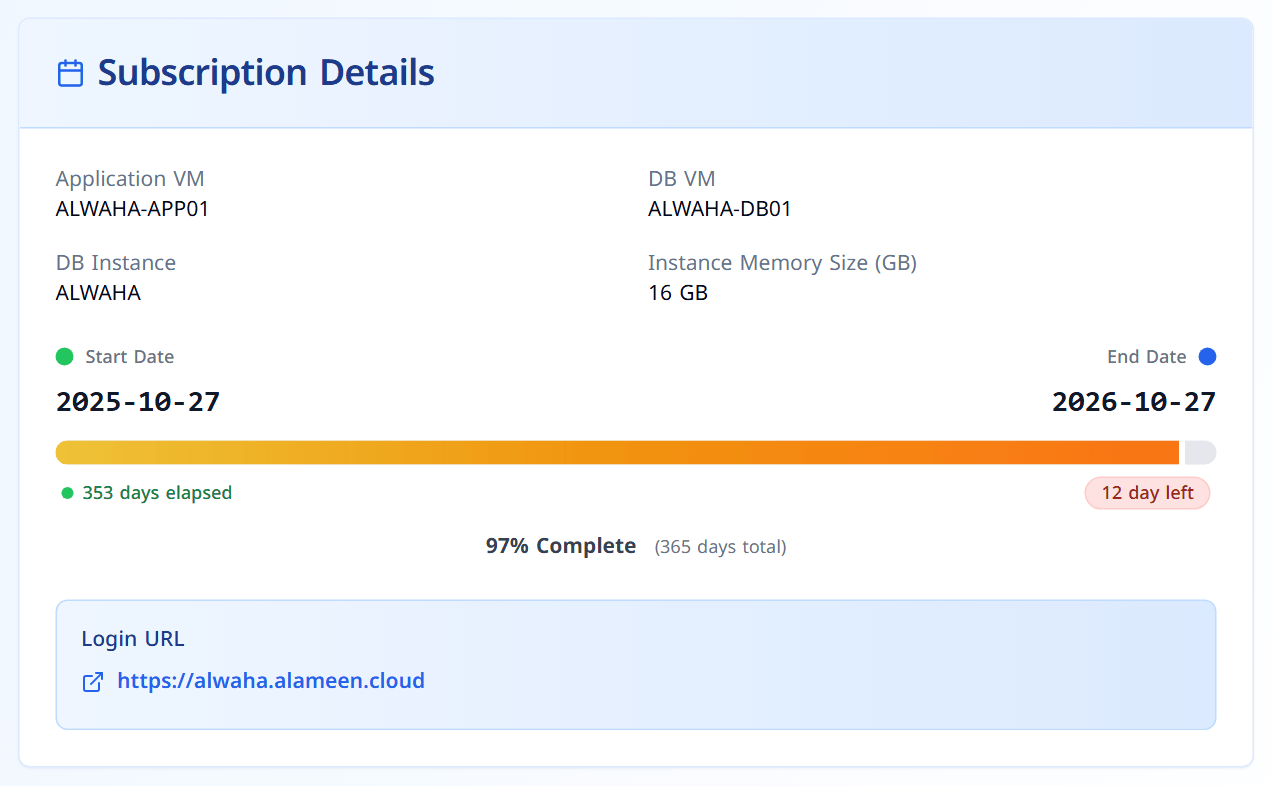
The Subscription Details card shows the technical side of your subscription:
Application VM, DB VM, DB Instance and Instance Memory Size: the servers our IT team prepared for you.
Start Date and End Date, with a progress bar that shows how much of the period has passed.
Login URL: the address your team uses to open alameen ERP. Click it to open the system in a new tab.
On the right you will also find your Contact Details (contact person, country and city) and, when available, your Virtual Machine Resources: CPU cores, memory, storage and IP address.
System users and their credentials
The System Users card lists every user account on your subscription, with its username and password. This is the quickest way to give a new colleague their login, or to look up a password someone has forgotten.
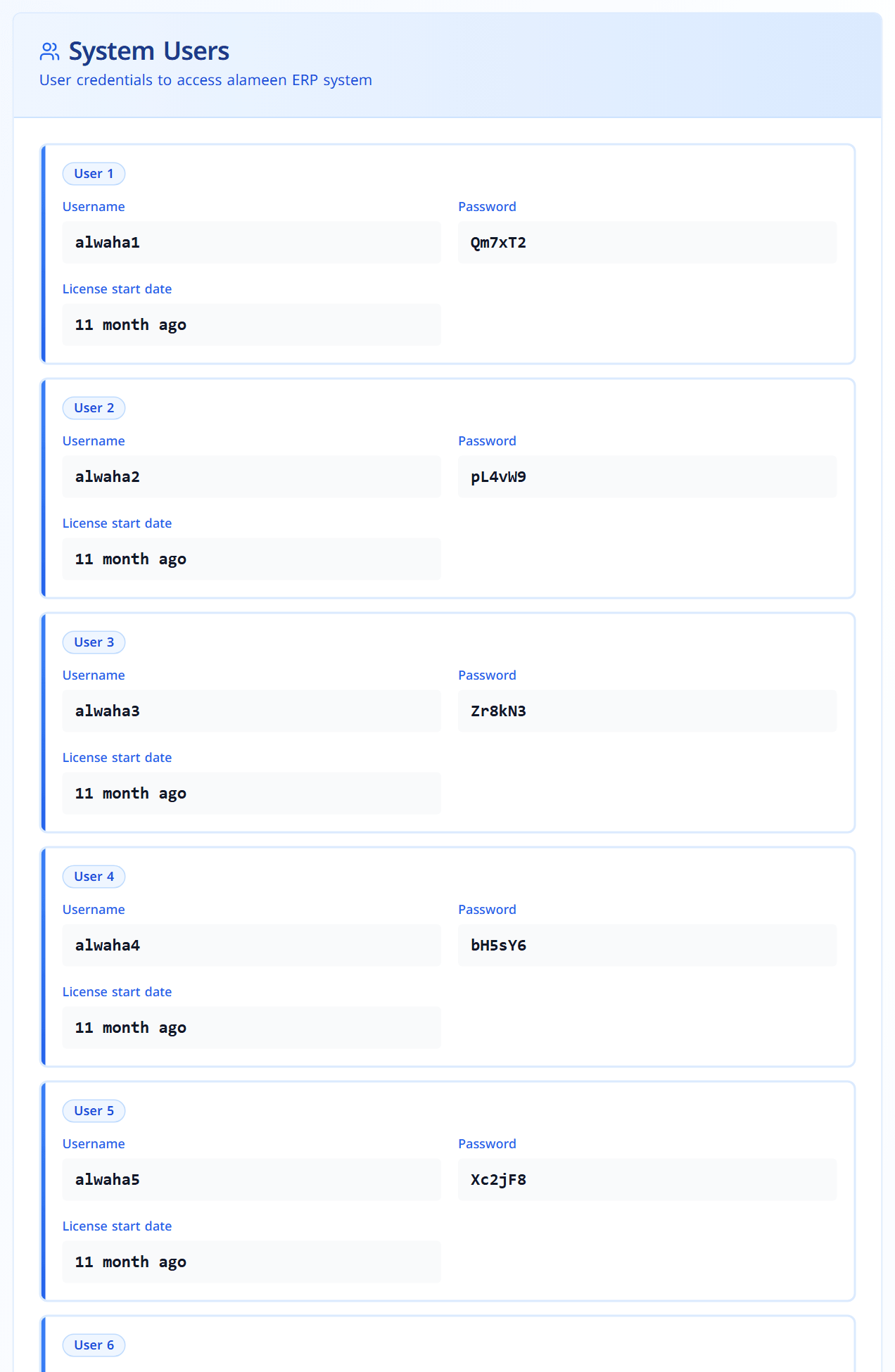
Security tip: Anyone who can sign in to the portal can see these passwords, so keep your portal email account secure, and ask users to change their password after their first login.
Requesting more users
Is your team growing? Click Request More Users at the top of the page.
Enter the number of Additional Users you need. The dialog shows your current users and the new total.
Optionally add a Reason and Additional Notes for our team.
Click Submit Request.
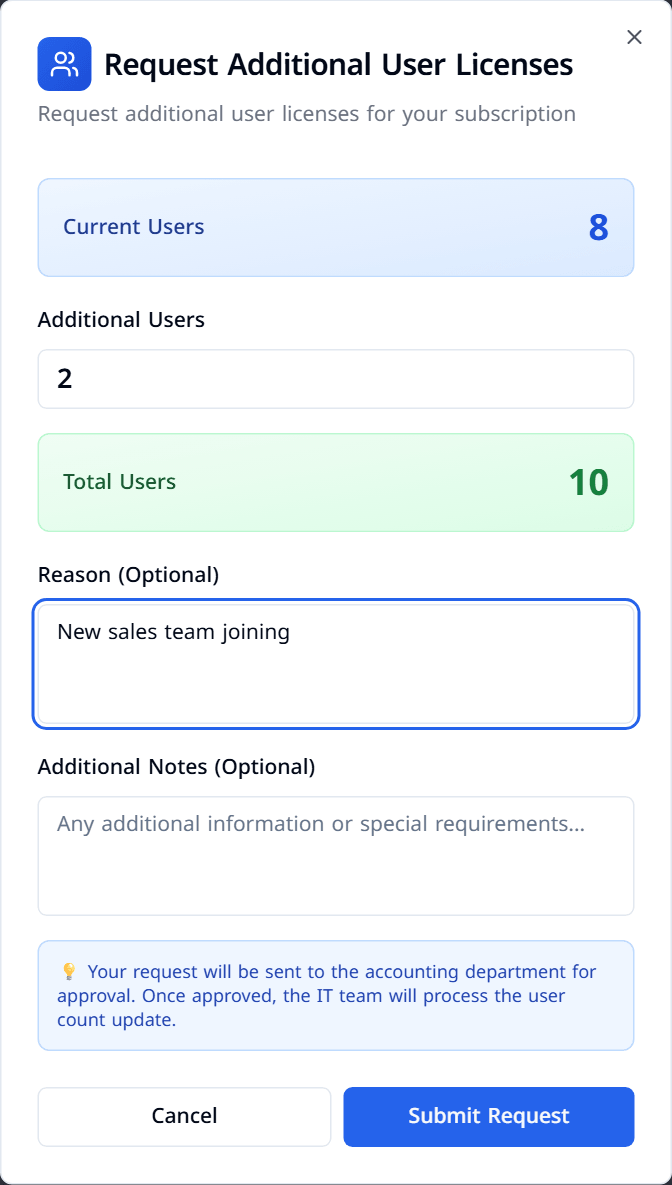
We email you to confirm that your request was received. Our accounting team then reviews it, and once it is approved our IT team creates the new user accounts.
Follow your requests in the License Request History card at the bottom of the page.
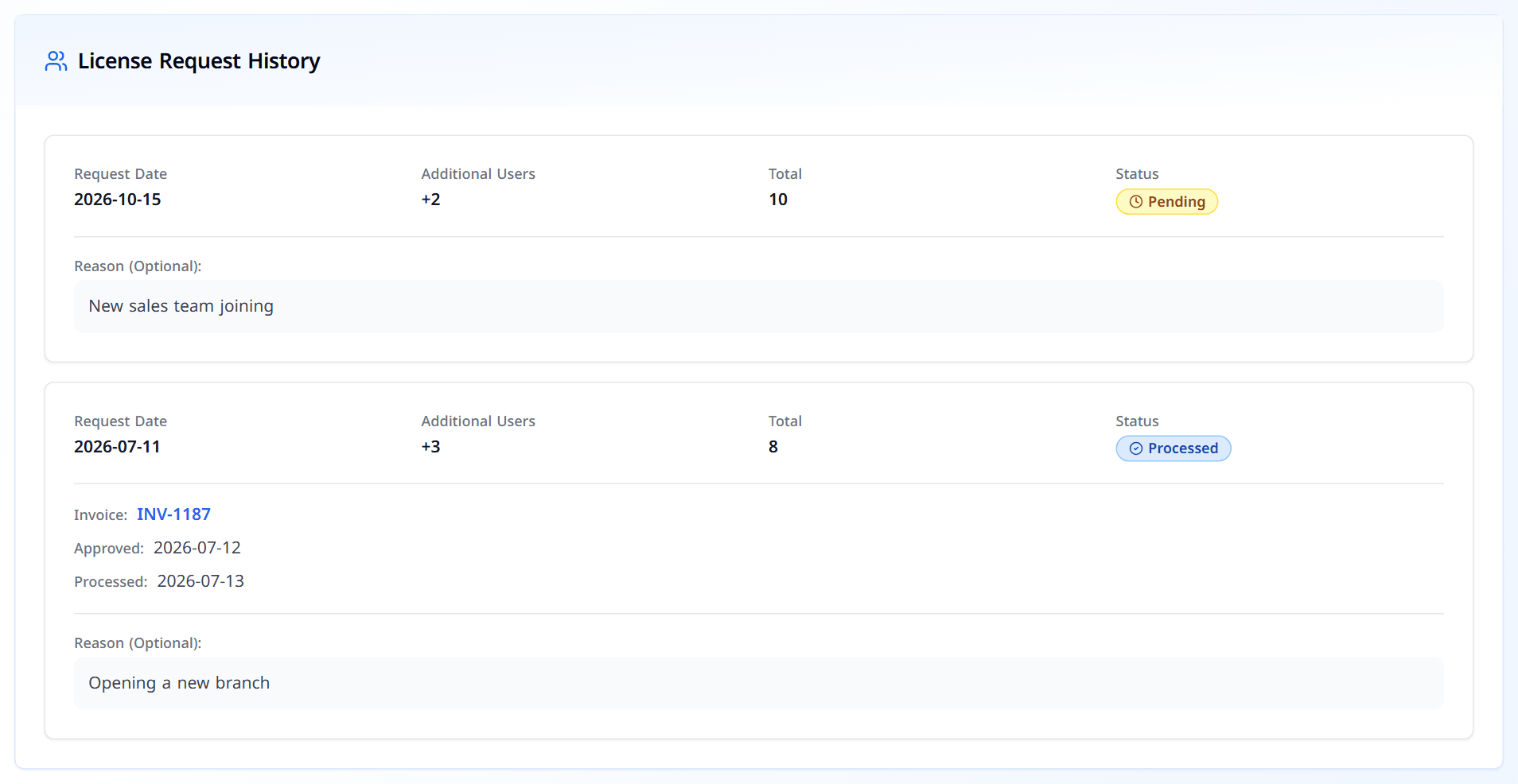
Status | What it means |
|---|---|
Pending | Waiting for review by our accounting team. |
Approved | Approved, with an invoice number. Our IT team is adding the users. |
Processed | Done. The new users are active, and we have emailed you their usernames and passwords. |
Rejected | Not approved. The card shows the reason. |
You can have one pending request at a time. If you need to change a pending request, contact us.
Renewing your subscription
When your subscription is within 15 days of its end date, a Renew button appears in the header. Click it to open the Renew Subscription page.
Check your Company Information and Current Subscription.
Under User Configuration, enter the number of users you need for the next period in Requested Users. If it differs from your current number, the page confirms the increase or decrease, and our IT team adjusts your users when the renewal is processed.
Click Submit Renewal Request.
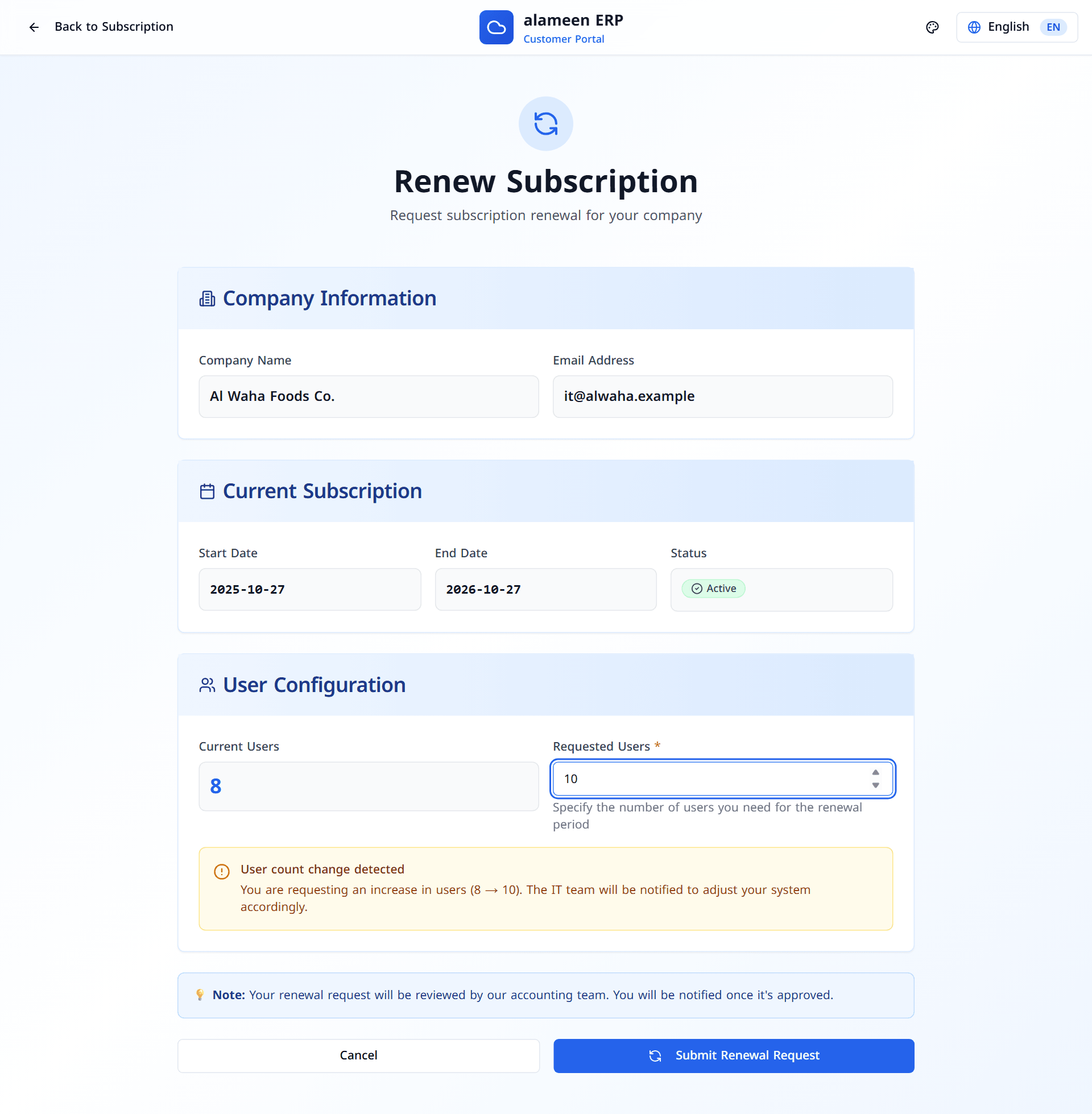
Our accounting team reviews the renewal and emails you when it is approved, together with the new subscription dates.
Renewal requests can be sent while your subscription is active, and one at a time. If your subscription has already expired, contact us or your distributor to renew.
Changing your sign-in email
The Sign-in email card shows the address you use to sign in and to receive our emails. To change it:
Click Change email.
Enter the New email address and click Send confirmation links.
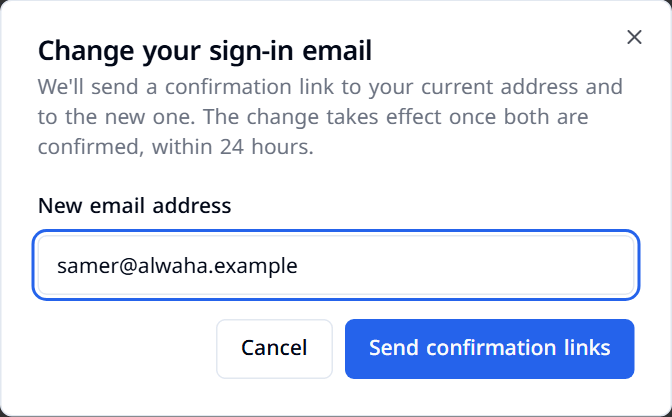
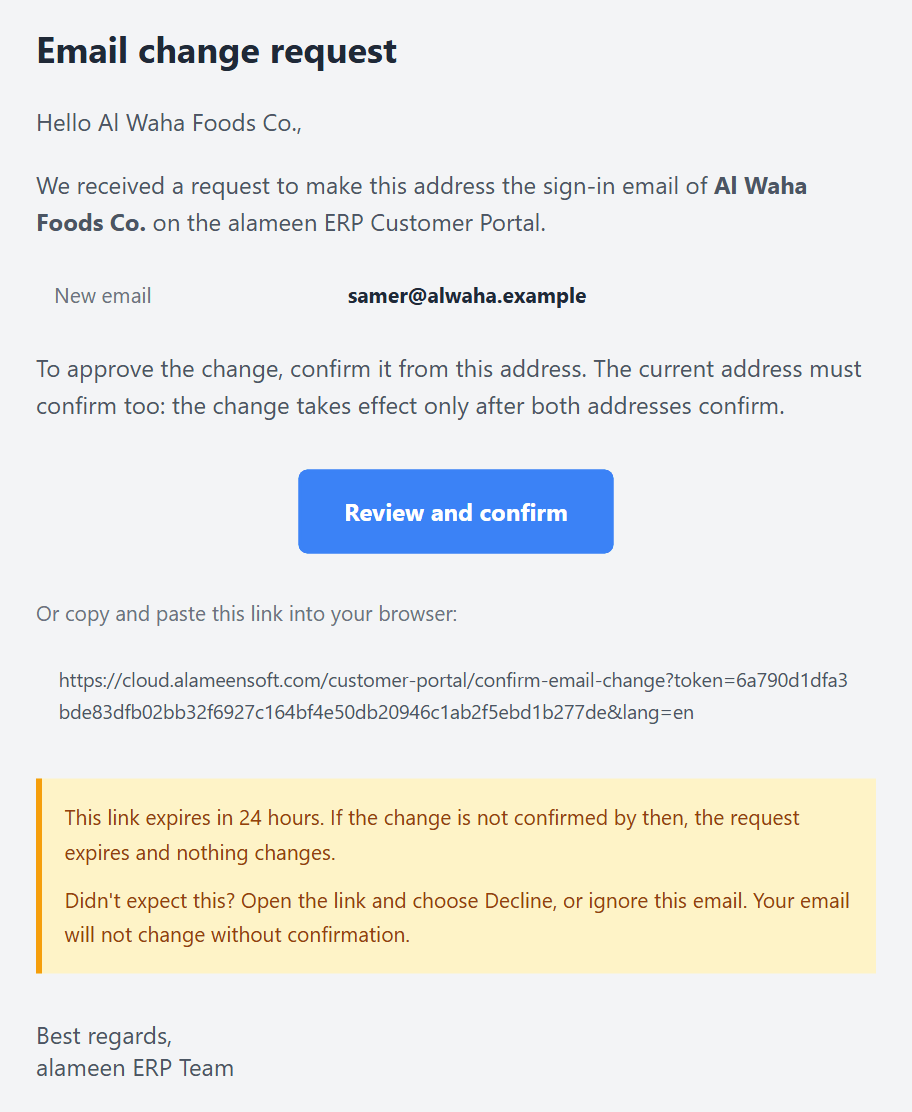
We send a confirmation link to both your current and your new address. Each email has a Review and confirm button.
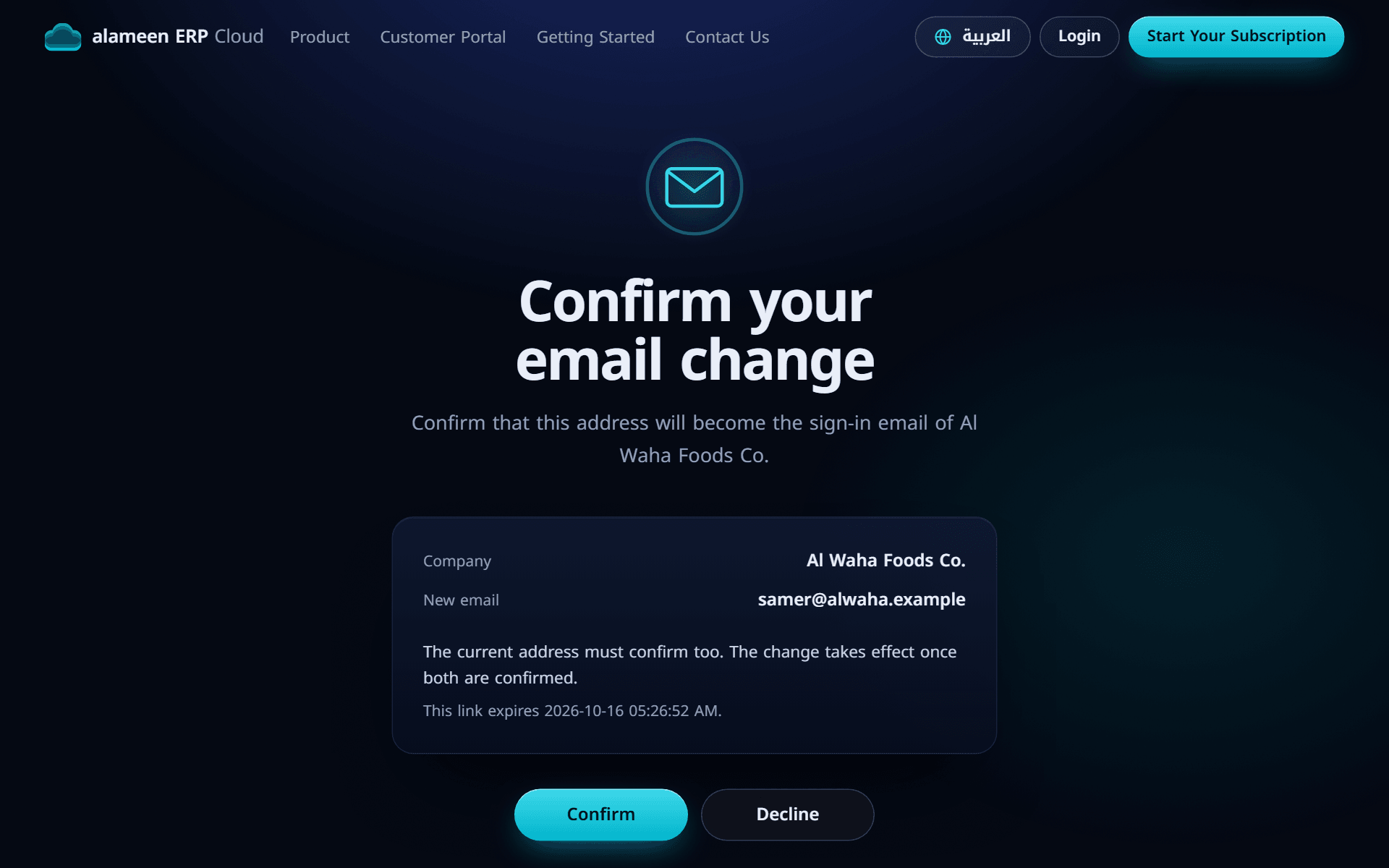
The link opens a page that shows the change. Nothing happens until you click Confirm (or Decline if you didn't ask for this change).
While you wait, the card shows the request as Email change pending, with the status of each address. Your current email keeps working until both addresses are confirmed. If you change your mind, click Cancel request.
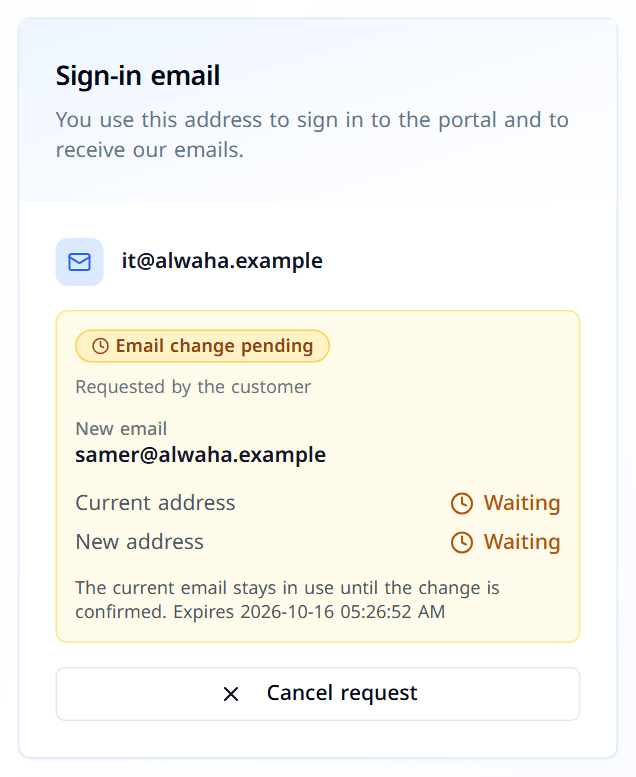
Both links must be confirmed within 24 hours, otherwise the request expires and nothing changes. Our support team can also change your sign-in email for you. In that case, only the new address needs to confirm.
Language, appearance and signing out
The bar at the top of every page lets you:
Switch between English and العربية. Your choice is saved to your account, so our future emails use it too.
Change the appearance of the portal with the palette button.
Logout when you are done, especially on a shared computer.

Frequently asked questions
I didn't get my login code. Codes arrive within a minute. Check your spam folder, and make sure you used the email address your subscription is registered with. If the 5 minutes run out, click Request New Code.
A colleague needs access to the portal. Can I add another email? The portal has one sign-in email per company. To use a different address, change your sign-in email as described above.
Where do I find a user's password? In the System Users card on your subscription page.
How do I add users in the middle of my subscription? Use Request More Users. You don't have to wait for your renewal.
Comments
Log in to join the conversation.