

How to Subscribe to alameen ERP Cloud: A Step-by-Step Registration Guide

alameen ERP Cloud gives your company the full alameen ERP system, hosted and managed for you, so your team can work from any computer through a browser. Getting started takes a few minutes of your time. Our team takes care of the rest.
This guide walks you through the whole journey, from filling in the sign-up form to logging in for the first time.
The journey at a glance
Registration has six steps. You do the first two; our accounting and IT teams handle the rest, and we email you at every milestone.
Fill in your company information: one short form on our website.
Verify your email: click the link we send you.
Application review: our accounting team reviews your request.
Subscription approval: you receive an approval email with your invoice number.
System setup: our IT team prepares your servers and user accounts.
Start using alameen ERP: you receive your login address and user credentials.
Before you start
Have these details ready:
Your company name, country and city.
The name and position of the person we should contact.
A work email address. This is the address you will use to sign in to the Customer Portal later, so choose one you check regularly.
A phone number.
How many people will use the system (between 1 and 50 users to start; you can add more at any time).
A Company ID: a short name made of lowercase English letters and numbers, such as
alwaha. It becomes the address of your system:https://alwaha.alameen.cloud.
Step 1: Open the sign-up form
Go to the alameen ERP Cloud website and click Start Your Subscription. You can switch the site between English and Arabic at any time with the language button at the top of the page.
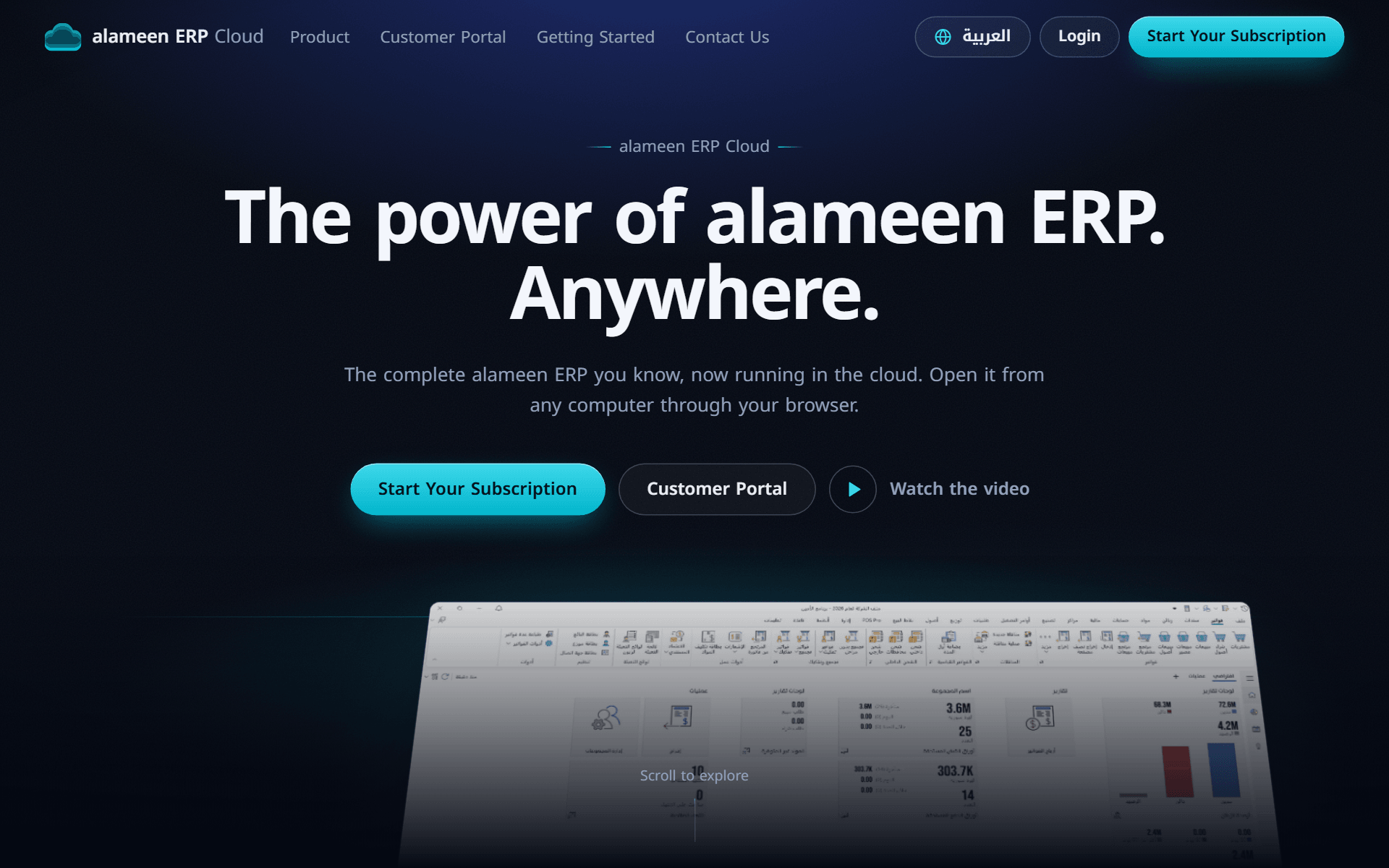
The language you are using when you submit the form is saved as your preferred language. We send all your emails in that language, so switch to Arabic first if you prefer Arabic emails.
Want to read more first? The Getting Started page has short illustrated guides for signing up, using the Customer Portal and requesting more licenses.
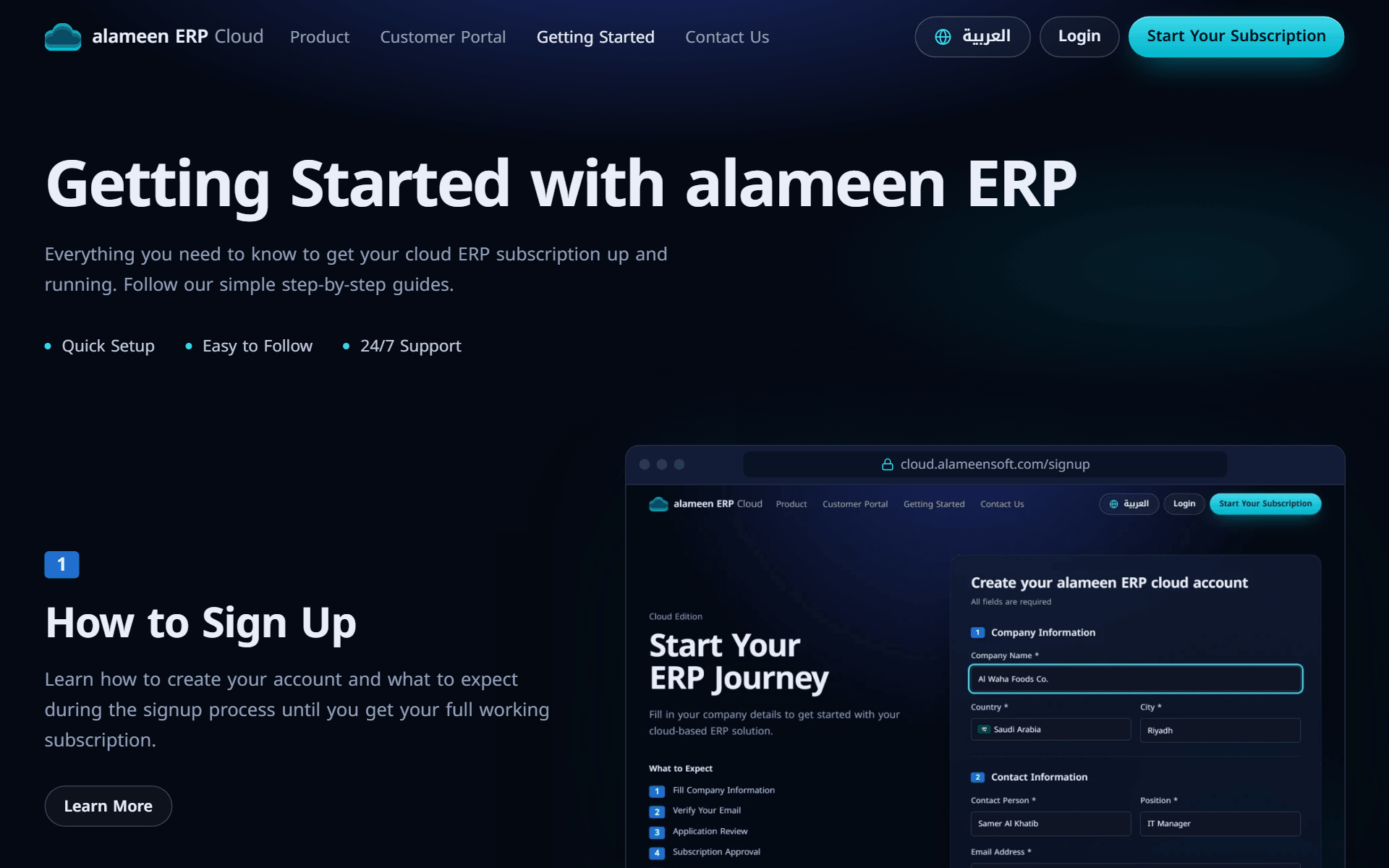
Step 2: Fill in your company details
The form has three short sections.
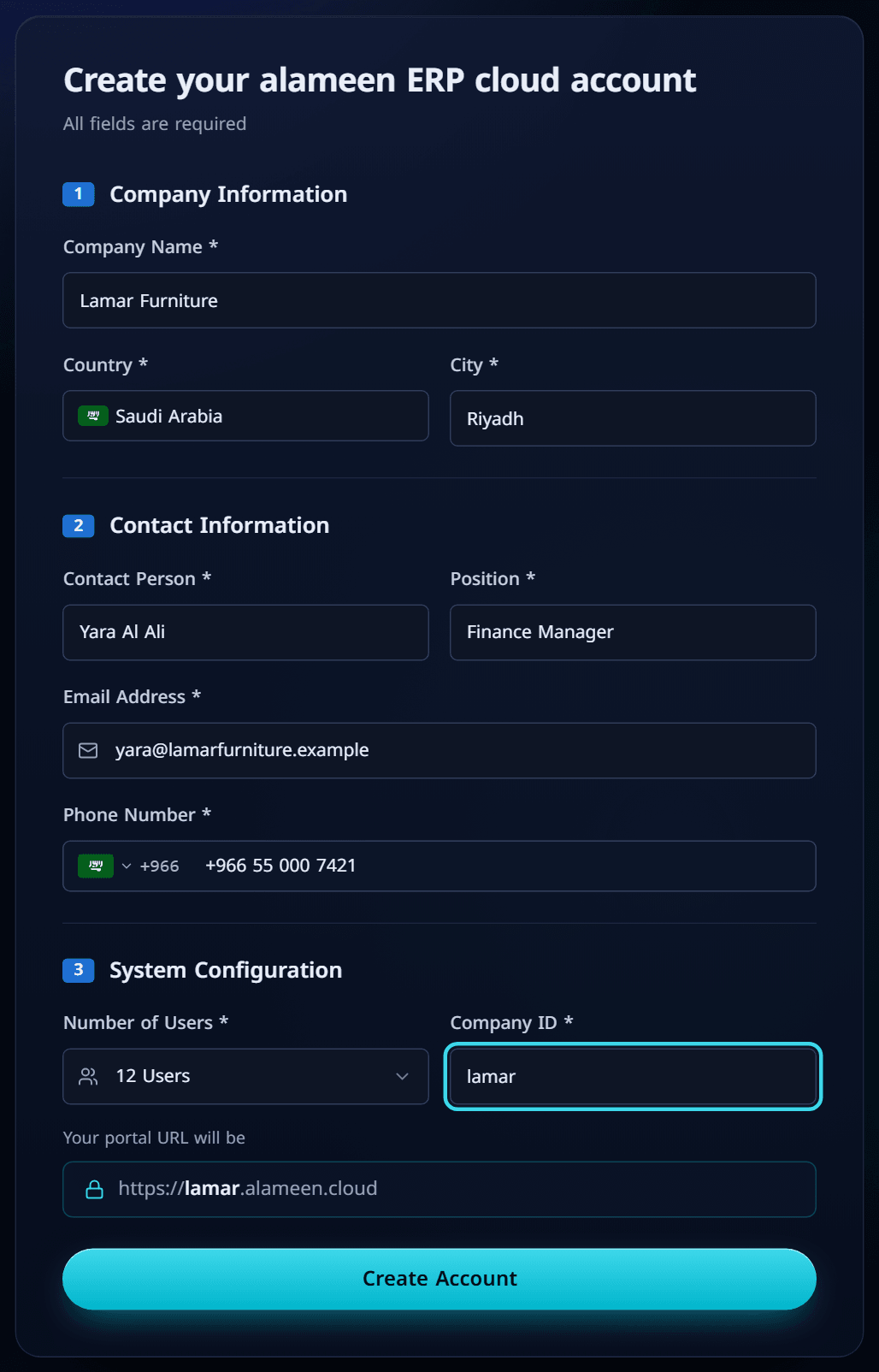
Company Information
Company Name: your registered company name.
Country: start typing and pick your country from the list. The form usually suggests your country automatically.
City: where your company is based.
Contact Information
Contact Person and Position: who we should talk to about the subscription.
Email Address: your sign-in email for the Customer Portal.
Phone Number: pick your country code from the flag list, then type the number.
System Configuration
Number of Users: how many people will log in to alameen ERP.
Company ID: lowercase letters and numbers only (anything else is removed as you type). Underneath, the form shows the address your system will have, for example
https://lamar.alameen.cloud. Each Company ID can be used once, so if it is taken, try another.
When everything looks right, click Create Account.
If an email address or Company ID is already registered, the form tells you so. Use a different one, or contact us if you think there is a mistake.
Step 3: Verify your email address
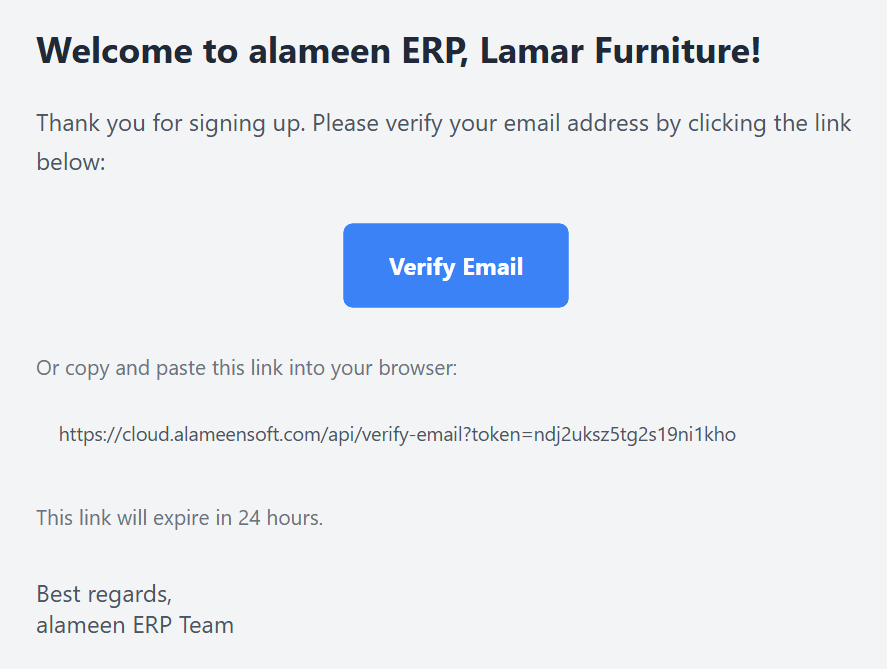
Right after you submit the form, you will see the Verify Your Email page, and we send a verification email to the address you entered.
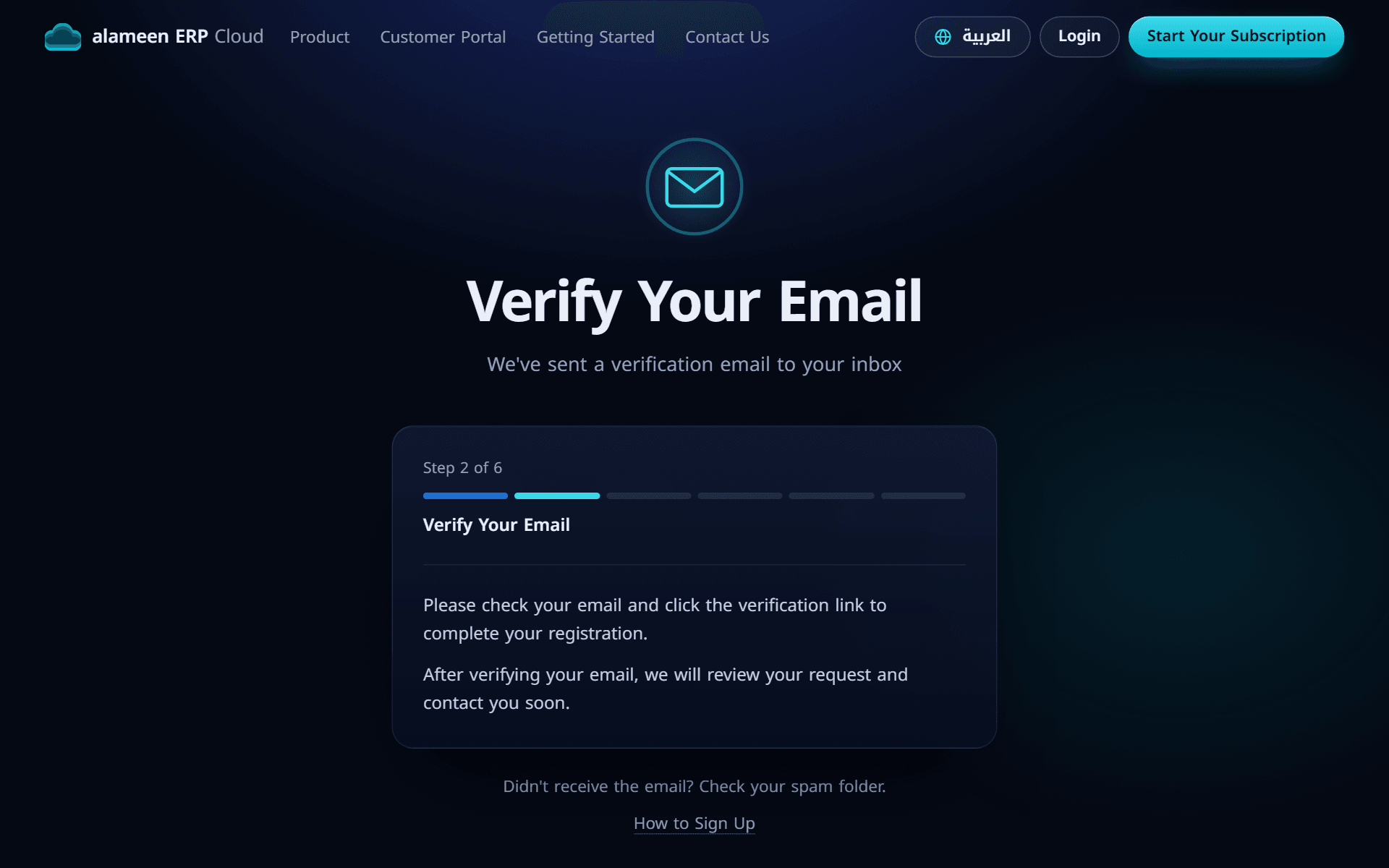
Open the email and click Verify Email. If you don't see it within a few minutes, check your spam or junk folder.
The link opens a Thank You! page that confirms your email is verified and shows what happens next.
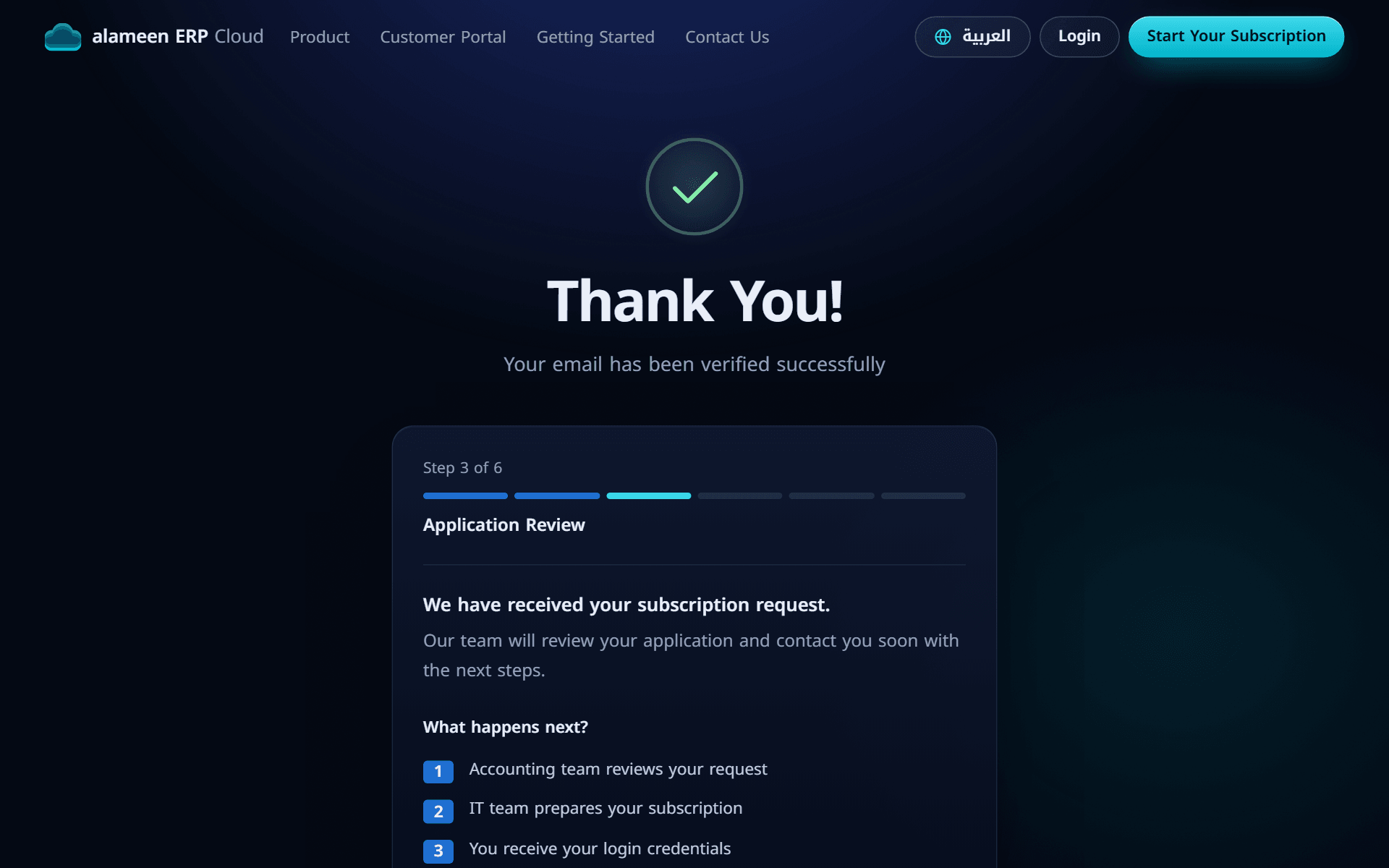
Your request now goes to our team. You don't need to do anything else until you hear from us.
Step 4: Review and approval
Our accounting team reviews your request, issues your invoice and links your account to the alameen partner (distributor) who will serve you. When your request is approved, you receive an email titled Subscription Request Approved. It contains your invoice number and your distributor, and tells you that our IT team has started preparing your system.
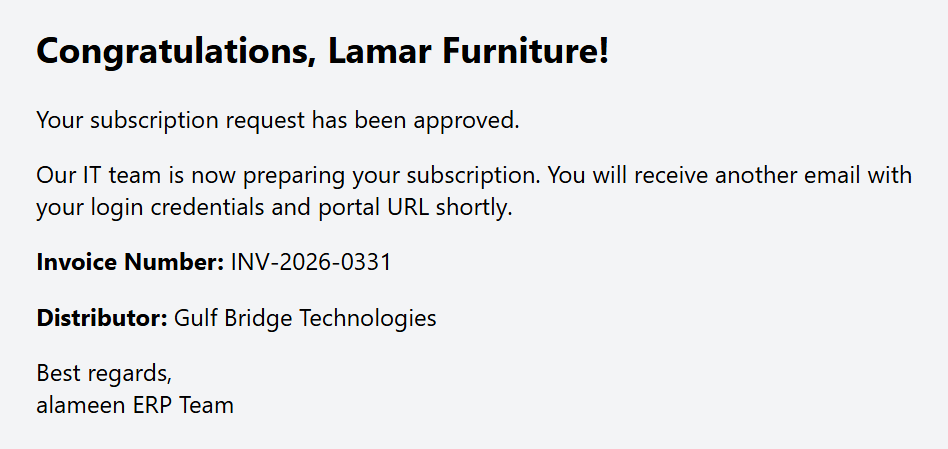
If we can't approve the request, for example because some details need correcting, we email you the reason. You can then sign up again with corrected information, using the same email address and Company ID.
Step 5: System setup
Our IT team now prepares your cloud environment: the application and database servers, your secure login address and an account for each user you asked for. When everything is ready, you receive the email Your alameen ERP Subscription is Ready!
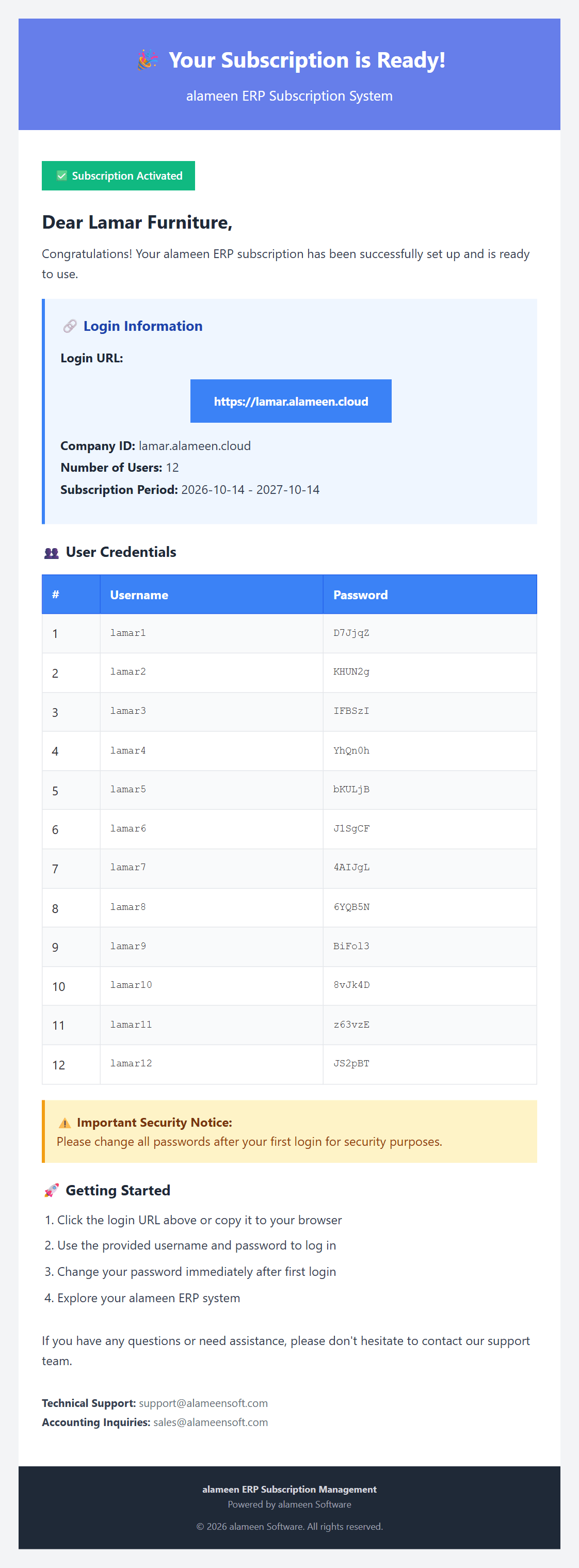
This email is important. Keep it safe. It contains:
Your login address, for example
https://lamar.alameen.cloud, with a button that opens it.Your subscription details: the number of users and the subscription period.
A username and password for each user. Give each person their own account.
Contact details for technical support and for accounting questions.
Security tip: Ask every user to change their password after their first login.
Step 6: Start using alameen ERP
Open your login address in a browser and sign in with one of the usernames from the email. That's it: your team is working in the cloud.
From now on, you can also sign in to the Customer Portal with the email address you registered. The portal is where you see your subscription, find your users' credentials, request more users and renew your subscription. Read our guide Using the alameen ERP Cloud Customer Portal for a full tour.
Frequently asked questions
How long does approval take? Our accounting team usually reviews new requests within one to two business days. We email you as soon as there is news.
I didn't receive the verification email. What should I do? Check your spam or junk folder first, and make sure you typed the address correctly. If it's not there, contact our support team and we will help you.
Can I start with a few users and add more later? Yes. Once your subscription is active, you can request more users at any time from the Customer Portal.
Can I sign in to the Customer Portal before my system is ready? No. The portal opens for your email address once our IT team has finished setting up your subscription and you have received the "Your Subscription is Ready" email.
Which language will your emails be in? The language you used on the sign-up form. You can change it later in the Customer Portal.
Comments
Log in to join the conversation.