
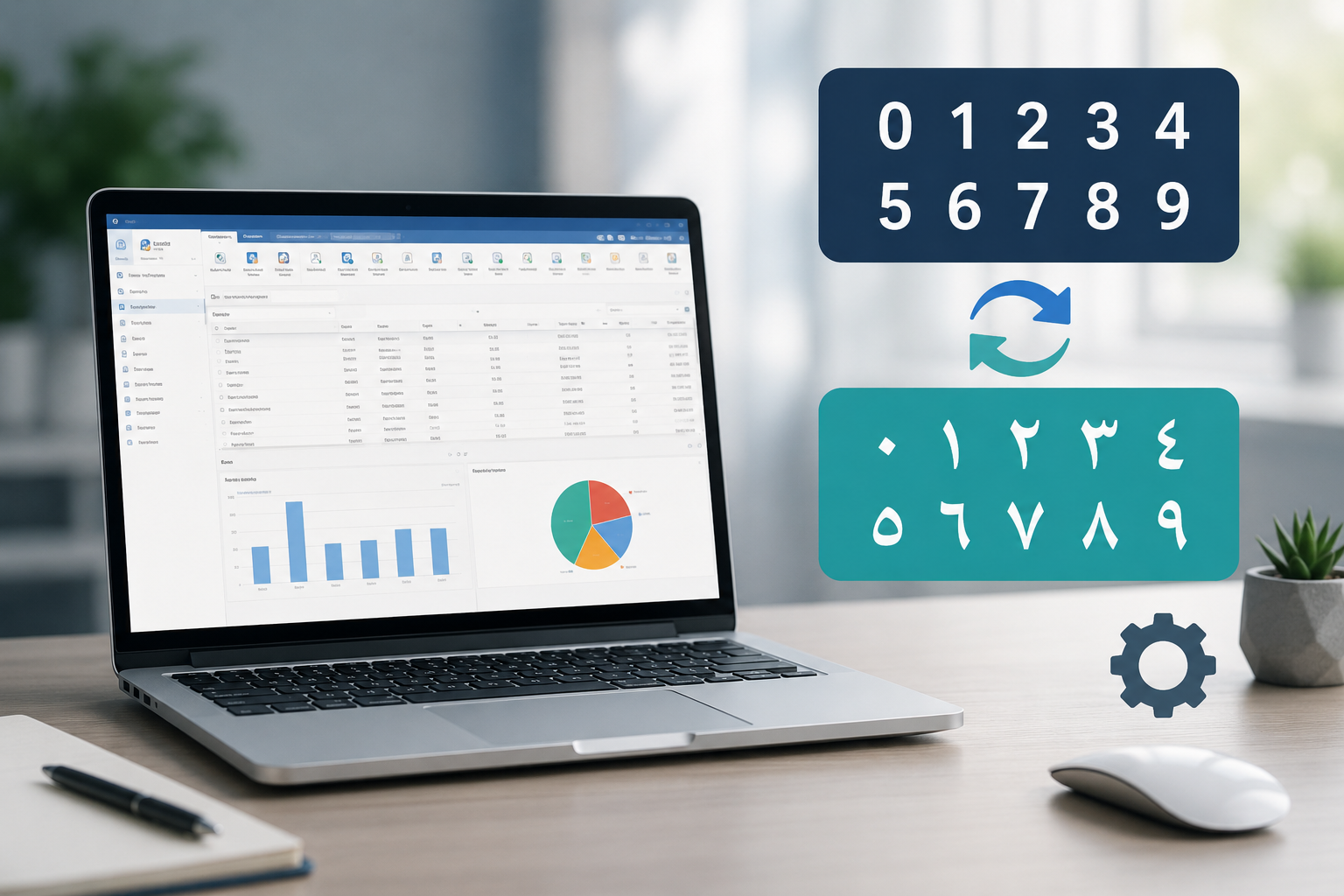
How to Switch Between Arabic and Hindi Numerals in alameen ERP

alameen ERP displays numbers based on the number format settings in Windows.
Since some users prefer to display numbers as follows:
0 1 2 3 4 5 6 7 8 9
While others want them displayed as:
٠ ١ ٢ ٣ ٤ ٥ ٦ ٧ ٨ ٩
Therefore, you can change the numeral style shown in the program via Windows settings, without needing to modify the data.
What is the difference between Arabic and Hindi numerals?
In this article, we use the following terms:
Arabic numerals:
0 1 2 3 4 5 6 7 8 9
Hindi numerals:
٠ ١ ٢ ٣ ٤ ٥ ٦ ٧ ٨ ٩
It is worth noting that Windows settings do not include options named "Arabic numerals" or "Hindi numerals"; instead, the numeral style is determined through the number format settings in the system.
How to change numeral style in Windows
To change the numeral style, follow these steps:
Open the Control Panel in Windows.
The name in the English interface is Control Panel
Go to the Clock and Region section
Clock and RegionSelect Region
RegionClick on "Additional settings"
Additional settingsOpen the Numbers tab from the Customize Format window
Customize Format
Numbers
Go to the Standard digits field
Standard digitsSelect the desired numeral style.
Make sure the "Use native digits" option is set to National.
Use native digits
National
Click "Apply," then "OK" to save the changes.
Apply
OK
After applying the changes, you may need to close and reopen alameen ERP for the new numeral style to appear.
Switching to Arabic numerals
To display numbers as follows:
0 1 2 3 4 5 6 7 8 9
Go to the Standard digits field:
Standard digits
Then select the numerals as follows:
0123456789
After applying the settings and restarting alameen ERP if needed, the numbers will appear in the Arabic style wherever Windows number formatting is used.
Switching to Hindi numerals
To display numbers as follows:
٠ ١ ٢ ٣ ٤ ٥ ٦ ٧ ٨ ٩
Go to the Standard digits field:
Standard digits
Then select the numerals as follows:
٠١٢٣٤٥٦٧٨٩
After that, apply the changes and restart alameen ERP if needed.
Does changing the numeral style affect stored data?
No. This setting only affects how numbers are displayed and does not change the numeric values stored in the database.
For example, the following two values represent the same number:
12345
١٢٣٤٥
The only difference is in how the numbers are displayed.
Does this change affect other programs?
Changing these settings may affect other programs that rely on Windows number formatting, since the change is made at the operating system level, not within alameen ERP itself.
Therefore, it is best to choose the numeral style that suits your work environment and the programs you use on your device.
Summary
You can switch between displaying Arabic and Hindi numerals in alameen ERP through the number format settings in Windows.
The settings are accessed in the following order:
Control Panel
Then:
Clock and Region
Then:
Region
Then:
Additional settings
Then:
Numbers
After that, select the desired numeral style from the field:
Standard digits
With the option:
Use native digits
Set to:
National
This way, you can change how numbers are displayed in alameen ERP to suit your needs and work environment.
Comments
Log in to join the conversation.
استاذ جزاك الله خيرا الكسور عند معاينة الفاتورة تنقلب فقط عند المعاينة
مثلا كسر 3/4 عند المعاينة يصبح 4/3 ما الحل وفقك الله
السادة المحترمون يمكنكم عند طلب خصائص حقل بيان الفاتورة اختيار المحاذاة ثم اختيار يمين فتظهر 4/3 بشكل صحيح